Virtual Machine Setup
1) Setup a ubuntu desktop vm on your windows computer with vmware vmware Ubuntu Desktop
2) Set username to mrrdt-iarc-desk-initals - (EX: mrrdt-iarc-desk-mw)
3) Set password to mrrdt
4) System Settings:
-
Memory: 4096mb or 8192mb
-
Processor: 4-6 cpu cores
5) USB Settings:
- Make sure USB 3.0 is enabled

- Right click and add filter from device for the wifi adapter
6) Power up the vm and login
7) Plug in your wifi adapter
- (Make sure to select “Connect to virtual machine” and click the select the virtual machine from the list when you plug usb in)
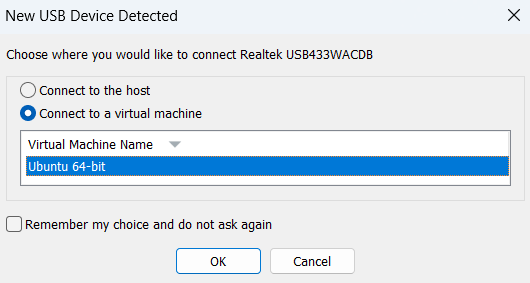 - If you forget go to VM -> Removable Devices -> Wifi Adapter and assign to VM (This step needs to be done every time vm is booted up)
8) Open the terminal
9) Run lsusb and verify that wifi adapter is there
10) Run ip link and verify that wlx08beac45dcb0 (
BATMAN Setup
1) Use these commands to install uv
sudo apt install curl

curl -LsSf https://astral.sh/uv/install.sh | sh

sudo mv ~/.local/bin/uv /usr/local/bin/uv

sudo mv ~/.local/bin/uvx /usr/local/bin/uvx

source $HOME/.local/bin/env

uv python install 3.14
2) Set the regulatory domain permanently (required for 5GHz mesh on channel 40):
sudo apt install -y iw wireless-regdb
echo 'REGDOMAIN=US' | sudo tee /etc/default/crda
sudo reboot
3) Create a folder for iarc and enter it
mkdir IARC-DEV

cd IARC-DEV
4) Git clone the IARC repo in
5) Go to interdrone-communication or wherever the vm-batman-setup.sh is stored
6) Run the vm-batman-setup.sh (This step needs to be done every time vm is booted up)
sudo bash vm-batman-setup.sh
Batman should be running. Verify with
sudo batctl o
iw dev wlx08beac45dcb7 link
sudo batctl n
If the Pis are runing you should see mesh neighbors including Pi 1 (169.254.97.1) and other nodes.
Troubleshooting:
1) VM not booting correctly
- Make sure settings are correct as seen in setup

- Literally just keep powercycling it (if setup is correct, this will hopefully always work)
2) VM not joining batman network correctly - First make sure USB Wifi Adapter is setup correctly with virtual machine - run sudo bash vm-batman-setup.sh
3) ibss join fails with Invalid argument (-22)
First try rebooting the virtual machine and re-plugin the usb wifi adapter ensuring you select the option to pass it through to the virtual machine. If that doesn't work try the solution below:

This is a regulatory domain issue.Fix it by setting the regulatory domain before joining:
```
bashsudo iw reg set US
sudo bash vm-batman-setup.sh
```
4) Adapter shows NO-CARRIER or state DOWN
The adapter may not have joined the mesh. Run manually:
    bashsudo iw reg set US
    sudo ip link set wlx08beac45dcb0 down
    sudo iw dev wlx08beac45dcb0 set type ibss
    sudo ip link set wlx08beac45dcb0 up
    sleep 2
    sudo iw dev wlx08beac45dcb0 ibss join my-batman-mesh 5200 02:ca:fe:ca:ca:40
    sudo batctl n
5) VM times out or suspends
In VMware go to Edit Virtual Machine Settings → Options → Power
Uncheck "Suspend when closing window"
Also disable sleep on the host machine under Windows power settings